
DELIVERY SPECIFICATIONS.
We aim to keep everything as simple as possible and are happy to help you get started with creating a photo album.
Below you’ll find a step-by-step explanation of the ordering process.
01. CREATE PHOTO BOOK
Software program
Before placing an order with Yellow Rebel, first design the photo album. We do not have our own software program, so get started yourself in Photoshop, InDesign or Illustrator, or use these beautiful and, above all, time-saving programs:
- AlbumStomp, this program has a one-time purchase price of 99 dollars (with the discount code YellowRebel you get 20% off).
No subscription fees. - SmartAlbums (with discount code YELLOWREBEL15 you get 15% off (discount) on pixellu).
- AlbumTeller (with discount code YELLOWREBEL you get 20% off a yearly subscription). Pay per album, per month, or per year.
- Fundy design and IPS software for professional photographers.
If you use one of the programs listed above, you can find our templates in these programs (search for: Yellow Rebel). That way, you can always be sure your files comply with our submission specifications.
Get started for free with designing photo books in Photoshop! Discover how with our tutorial on the blog.
Submitting as a spread
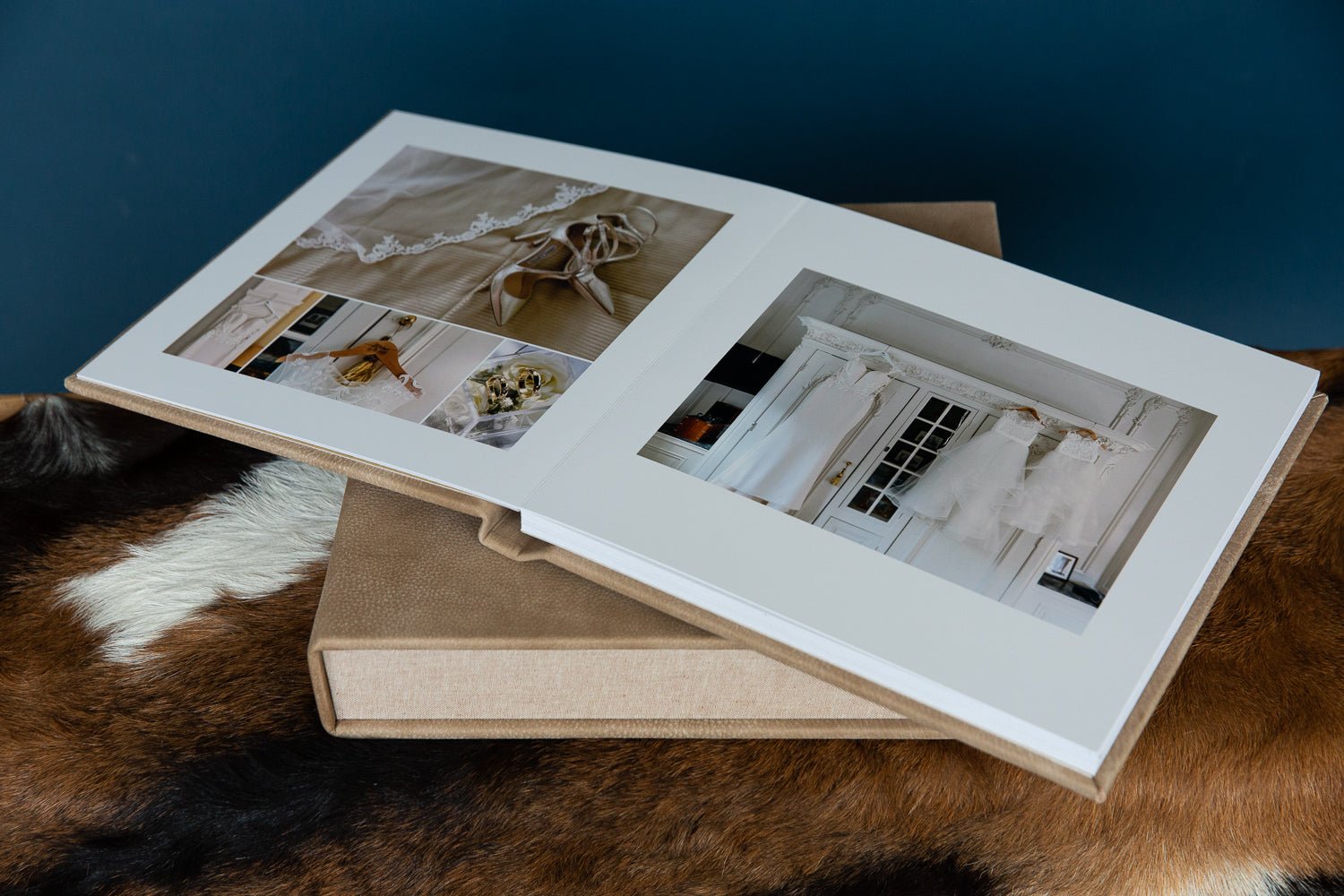
When it comes to the layout of a photo book, we don’t talk about pages but about spreads. You submit the left and right page as one photo; that is what we call a spread. A photo book starts and ends with a spread. The maximum number of spreads we deliver is 50.
Color profile
Submit your files to us in jpg sRGB at 300 DPI.
Print quality
We know how many hours you’ve spent in front of your screen editing the photos. That’s why we also set high standards for print quality and do not apply any color correction or sharpening. We print the photos exactly as you submit them. That’s a promise!
02. FORMATTING OPTIONS
Have you used one of our templates in SmartAlbums, Albumteller or Fundy to lay out your photo album? Then you can continue with peace of mind, because the layout sizes and color profile are already set correctly.
Have you used AlbumStomp? Then carefully check the white margins on the outside of your spreads. These templates sometimes have very narrow margins, which you can adjust manually by setting the guide line to 1 cm.
Do you work with Photoshop, InDesign or Illustrator? Then see below the layout sizes that match the different album formats.
| Albumformaat (bxh) | Opmaakformaat (bxh) |
|---|---|
| 10 x 10 cm | 20 x 10 cm |
| 15 x 10 cm | 30 x 10 cm |
| 15 x 15 cm | 30 x 15 cm |
| 20 x 15 cm | 40 x 15 cm |
| 15 x 20 cm | 30 x 20 cm |
| 20 x 20 cm | 40 x 20 cm |
| 25 x 25 cm | 50 x 25 cm |
| 30 x 20 cm | 60 x 20 cm |
| 20 x 30 cm | 40 x 30 cm |
| 30 x 30 cm | 60 x 30 cm |
| 30 x 40 cm | 60 x 40 cm |
| 35 x 25 cm | 70 x 25 cm |
| 40 x 30 cm | 80 x 30 cm |
| 35 x 35 cm | 70 x 35 cm |
Bleed margins
During the design process, keep in mind that we cut approximately 3-5 mm off the supplied spreads. Therefore, do not place anything important within 1 cm of the outer edge. Are you working with white borders? If so, make sure they are wide enough to still leave attractive white borders (we recommend at least 1 cm).
03. SUBMITTING AND UPLOADING
Submitting files
Is your design ready to send? Fantastic! It’s now very important that the numbering of the spreads is correct, so they are bound in the right order. It’s your responsibility, but let’s be honest, it would be a shame if something went wrong, wouldn’t it?
First save your files with a project name followed by the number. For example:
Rob-Marloes_001, Rob-Marloes_002, Rob-Marloes_003, and so on.
Uploading files
While placing your order, you’ll automatically come across the drag-and-drop option to upload your files to us.
04. ORDER PHOTO BOOK
When you have collected all the products in your shopping cart, you can send us the order at the touch of a button, and you can expect your photo album(s) to be delivered to your home within 3 to 4 weeks.